
User Tools
This is an old revision of the document!
Table of Contents
ParserMonster Framework GUI
The main window has several interesting sections. Look at the Table of Contents:
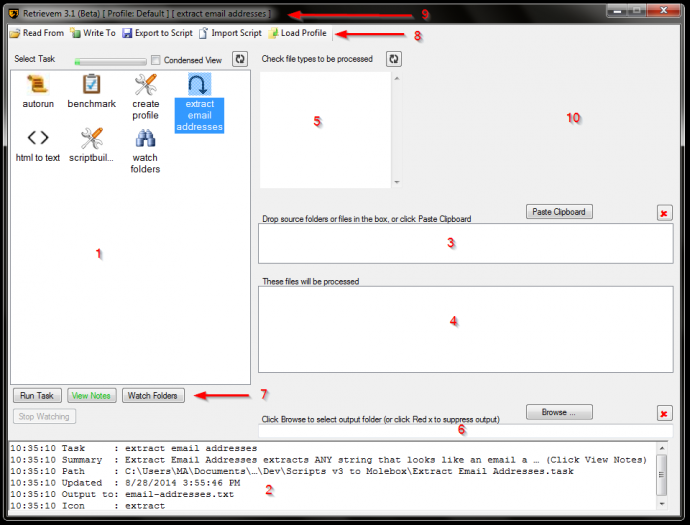
Section 1: Task List Box
All of the tasks listed here can be run by the application, with the following exceptions:
- A task file from another ParserMonster application that is not supported by your ParserMonster application.
- A buggy task file.
Each task is represented by a descriptive icon and, of course, its file name.
Above the Task List Box, a gauge measures how many tasks slots are filled. Each application allows a different number of slots. To the right of the gauge is a checkbox that lets you toggle between viewing tasks as large or small icons. Finally, the refresh button is handy for updating the task list if you add, remove or edit task files.
Clicking on a task selects it as the current task. The Status Box and Window Title Bar displays are updated.
Section 2: Status Box
This area displays additional information whenever you click somewhere on the Main Window. Here, you see useful information about the currently selected task. Learn about task files.
The information changes, depending upon what you click, and whether a task is running. Often, this area is cleared; however, you can review the entire session history by opening the ParserMonster Log File.
Section 3: Source Folder(s)
Section 4: Selected Files
Section 5: File Filter Box
Section 6: Destination Folder
Section 7: Task Action Buttons
Section 8: Menu
Section 9: Window Title Bar
Section 10: Reserved
Juicy real estate! Not used for anything, right now.


